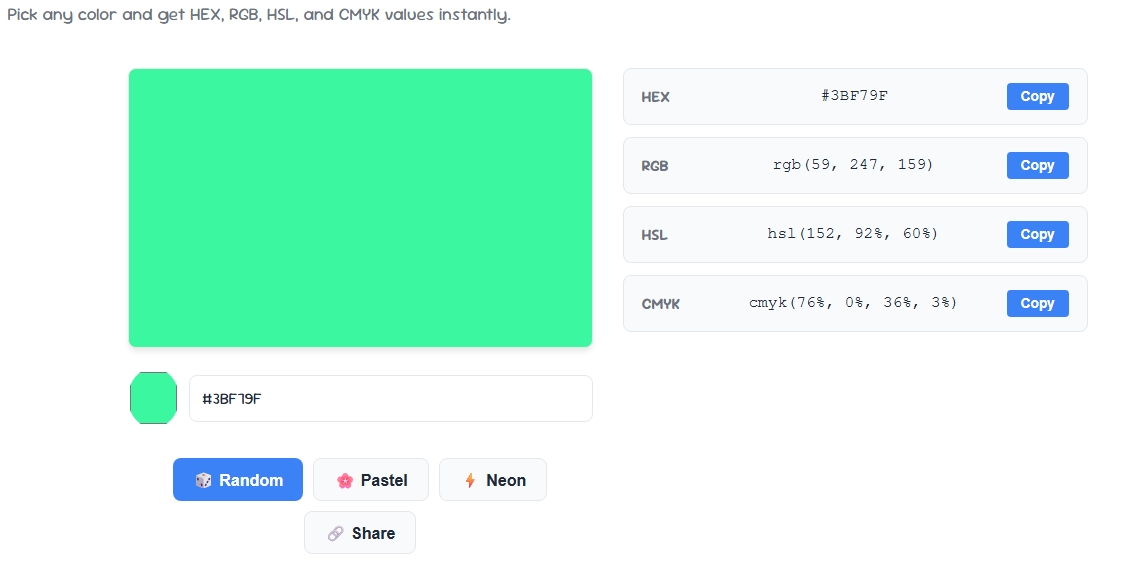
Color-Picker Tool: 5 Essential Tips for Perfect RGB Values
Getting RGB values slightly wrong can throw off an entire design — a logo that looks "off-brand," a website background that clashes, or a UI element that fails contrast tests. A good color-picker makes RGB selection precise, but only if you know how to use it correctly.
Here are 5 essential tips to get perfect RGB values every single time.
What Are RGB Values and Why They Matter
RGB stands for Red, Green, and Blue — the three color channels that combine to create every shade you see on a digital screen. Each channel ranges from 0 to 255, meaning there are over 16 million possible combinations.
A color picker simplifies this by letting you visually select a shade and instantly see its precise RGB breakdown, rather than calculating it manually.
Getting RGB values right matters most for web design, digital branding, and app UI, where even a small shift in one channel can change how a color reads on different screens.
1. Always Sample, Don't Guess
The biggest mistake people make is typing in RGB numbers from memory or estimation. Instead, use a color picker to sample the exact shade — whether it's from an uploaded image, a live website, or your screen directly. Sampling guarantees the RGB value is accurate to the source, with zero guesswork.
2. Check RGB Against Your Screen's Color Profile
RGB values can appear slightly different depending on your monitor's calibration and color profile. A color picker tool that works in the standard sRGB space (the web default) will keep your colors consistent across most devices.
If you're designing for print as well, remember RGB doesn't translate 1:1 to CMYK, so always double-check both values separately.
3. Use Sliders Instead of Typing Numbers Blindly
Rather than typing RGB numbers and hoping they look right, use the visual sliders in your color picker. Dragging the Red, Green, and Blue sliders lets you see the color update live, helping you fine-tune the exact shade you want instead of relying on trial-and-error number entry.
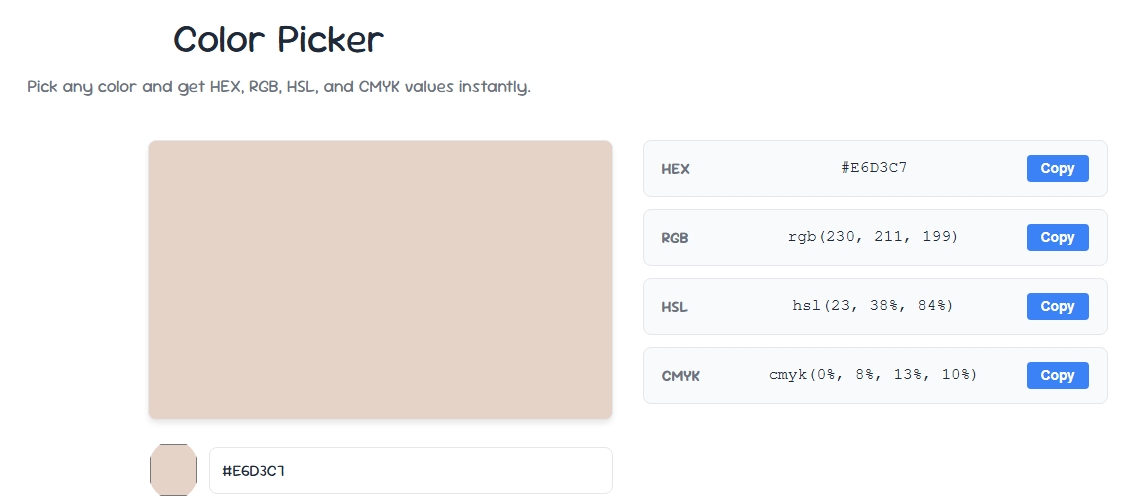
4. Cross-Verify RGB With HEX and HSL
A reliable color picker shows RGB alongside HEX and HSL simultaneously. Cross-checking all three formats helps catch errors — for example, if your RGB value doesn't match the HEX code you expected, something was entered incorrectly.
This is especially useful when handing off designs to developers who may prefer HEX in CSS files.
5. Test RGB Values for Accessibility Before Finalizing
A perfect-looking RGB value on your screen might still fail accessibility standards for text contrast. Before locking in your final colors, run your RGB combination through a Contrast Checker to confirm it meets WCAG guidelines.
The W3C Web Accessibility Initiative recommends a minimum 4.5:1 contrast ratio for normal text, which many color combinations fail without testing.
Common RGB Mistakes to Avoid
- Rounding numbers manually: Small rounding errors in RGB can shift a color noticeably — always let the color picker calculate exact values.
- Ignoring alpha/opacity: RGB alone doesn't account for transparency (RGBA does) — check this if your design uses overlays.
- Not saving your palette: Use a Color Palette Generator to store finalized RGB values so your team stays consistent across pages.
- Skipping cross-device testing: The same RGB value can look slightly different on mobile vs desktop screens — preview both before finalizing.
Final Thoughts
Perfect RGB values come down to using the right process, not just the right tool. Always sample instead of guessing, cross-verify across formats, and test for accessibility before finalizing your design.
Pair your color picker with a contrast checker and palette generator for a complete, error-free color workflow.